To maintain secure access to university accounts, Duo is requiring all users to update their Duo Mobile apps to version 4.85.0 or higher by March 31, 2026. (Note: Software versions count whole numbers. Version 4.106.0 is newer than 4.85.0 -- think "106" vs "85," not decimals.)
We encourage all UC Santa Barbara students, faculty and staff to update Duo Mobile to the latest version to benefit from the improved experience and enhanced security features. Please check your device's app store for the latest version of the app.
Note: The Duo Mobile app does not support older versions of certain operating systems and some country locations. Please refer to the following links for a list of supported Mobile OS, country restrictions, and other known issues:
Instructions for Updating
Jump to: Identifying Your Duo Version | Apple App Store | Google Play Store | Unable to update?
Identifying Your Duo Mobile App Version
How to identify the version of the Duo Mobile app you have installed on your device.
Step 1.
Open Duo Mobile app from your mobile device
Step 2.
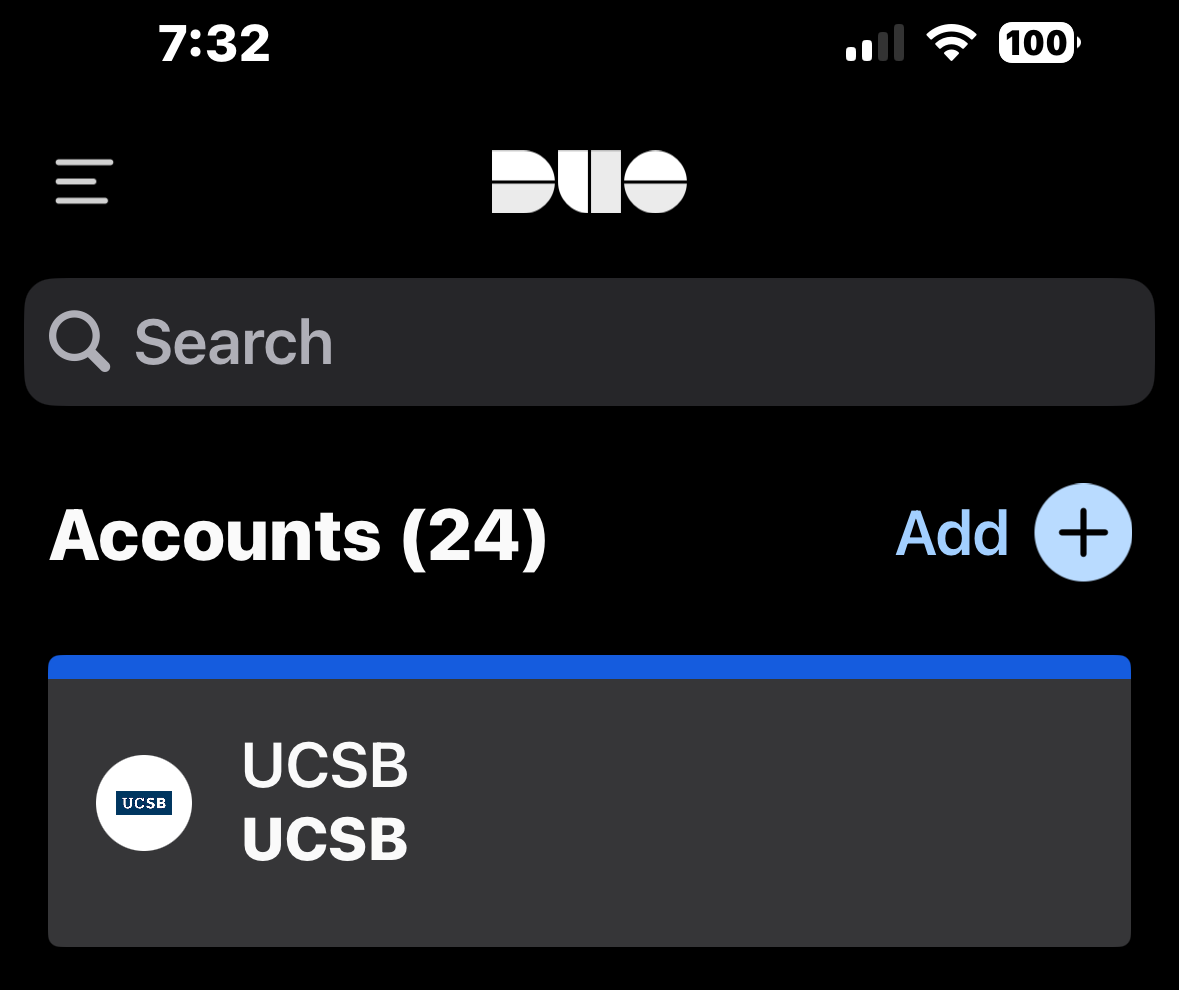
Click the hamburger icon (three horizontal lines) at the top left of the screen
Step 3.
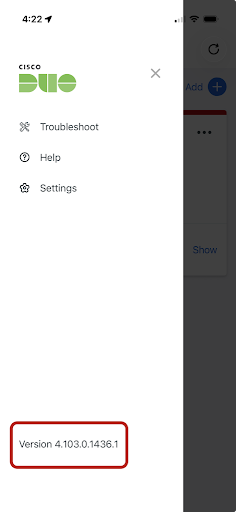
The version of Duo Mobile app being used by the device will be listed at the bottom
Apple App Store
Note: For more detailed instructions for updating apple apps, please visit Apple App Updates page.
Step 1.
Tap to open the App Store
Step 2.
Tap your profile icon at the top of the screen

Step 3.
Scroll down to see pending updates or recently updated apps.
Note: If there is an available update for the Duo Mobile app, the button will be labeled as Update. Otherwise, if the button displays Open, it indicates that there are no pending updates available.
Step 4.
Tap Update next to the Duo Mobile app -or- Tap Update All to update all pending apps
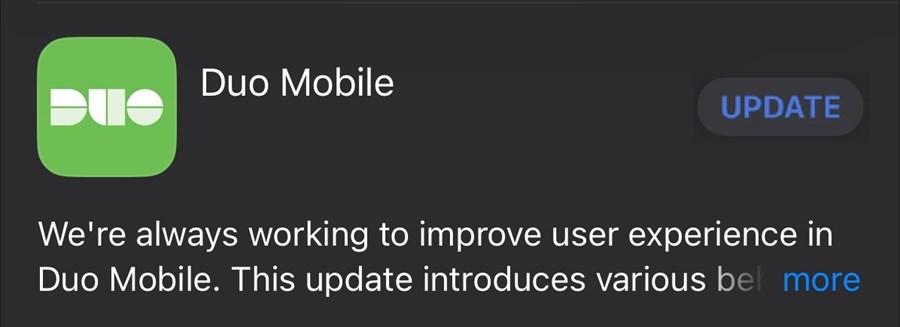
Step 5.
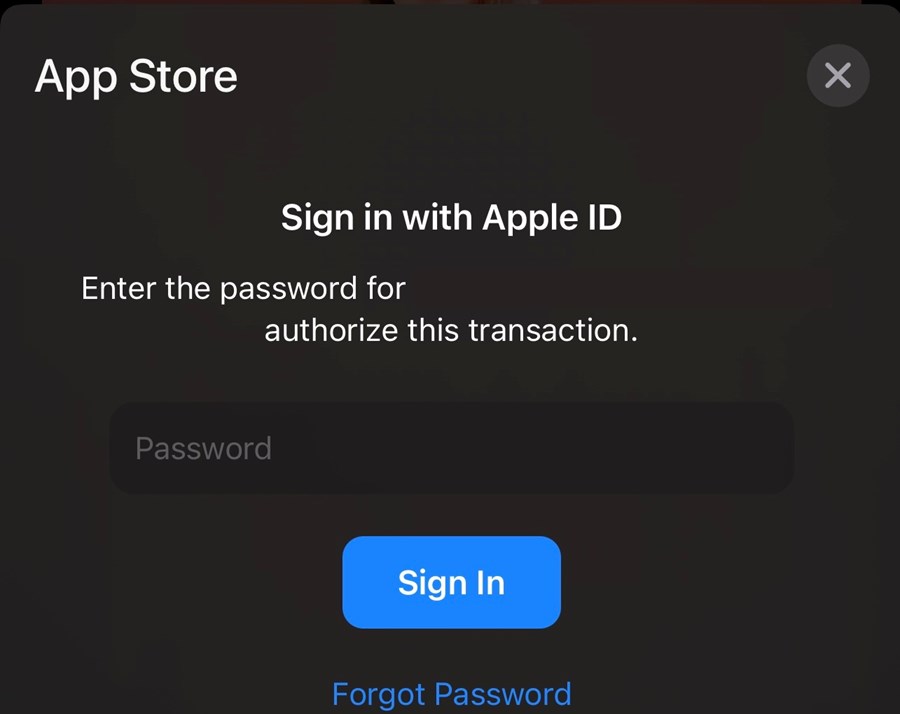
If prompted, enter your Apple ID password or Face ID/Touch ID
Google Play Store
Note: For more detailed instructions for updating Android apps, please visit Google Play Updates page.
Step 1.
Tap to open the Google Play Store
Step 2.
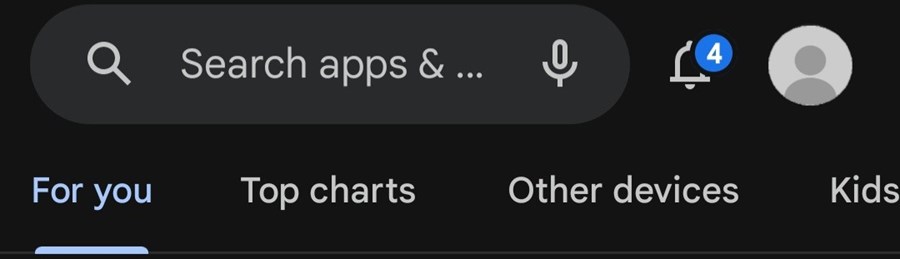
Tap your profile icon at the top of the screen
Step 3.
Tap Manage apps & device

Step 4.
Tap See details
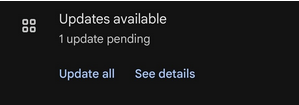
Step 5.
Tap Update next to the Duo Mobile app -or- Tap Update all for all pending apps
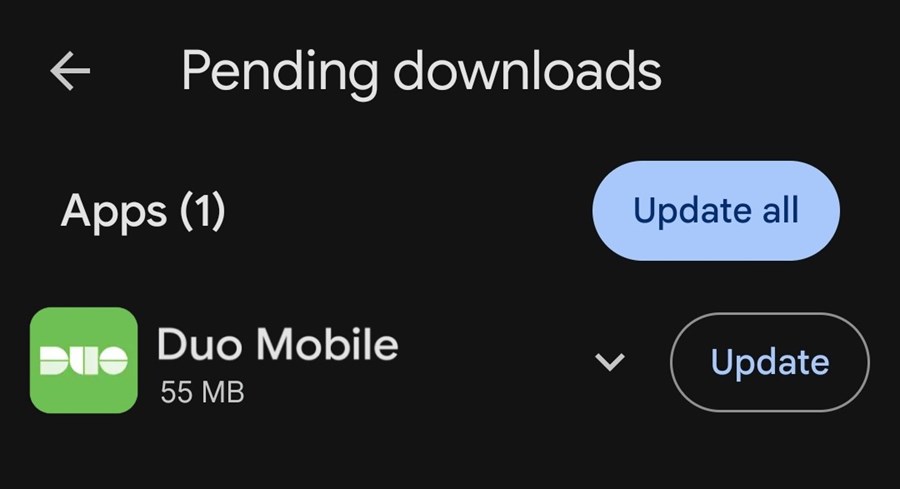
Note: If an update is available for the Duo Mobile app, a button labeled Update will be visible. Otherwise, if the app is not displayed, it indicates there are no pending update.
Unable to update?
If your device cannot support the lastest version of Duo, you will need to upgrade your device or contact the IT Help Desk to request a hardware token.