Follow these steps to enroll in Duo with your smartphone. It can take up to 24 hours for your Duo enrollment to become active.
You can view or print the instructions in PDF format:
Before you begin:
- We recommend performing these steps during support hours (Monday-Friday, 8 a.m.-5 p.m.).
- Make sure your mobile phone is charged.
- You will need your Apple App Store or Android Play Store password to complete Step 2.
- If you are registering your mobile phone as a second device, use these instructions.
STEP 1: Begin Duo Enrollment from Your Computer
1.1) Open a web browser to https://duo-mgmt.identity.ucsb.edu/.
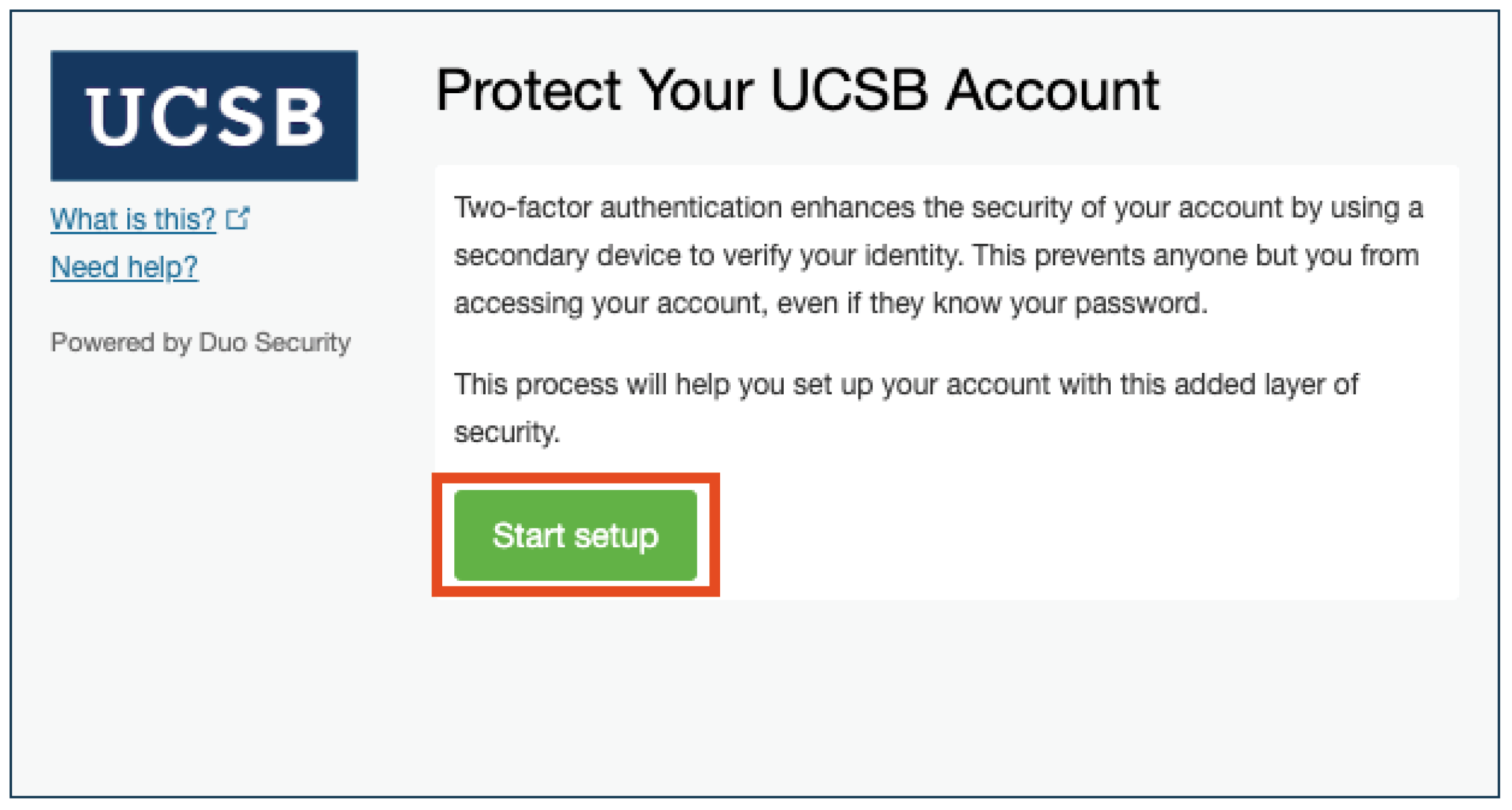
1.2) After logging into Single sign-on (SSO), click "Start Setup" on the enrollment screen.
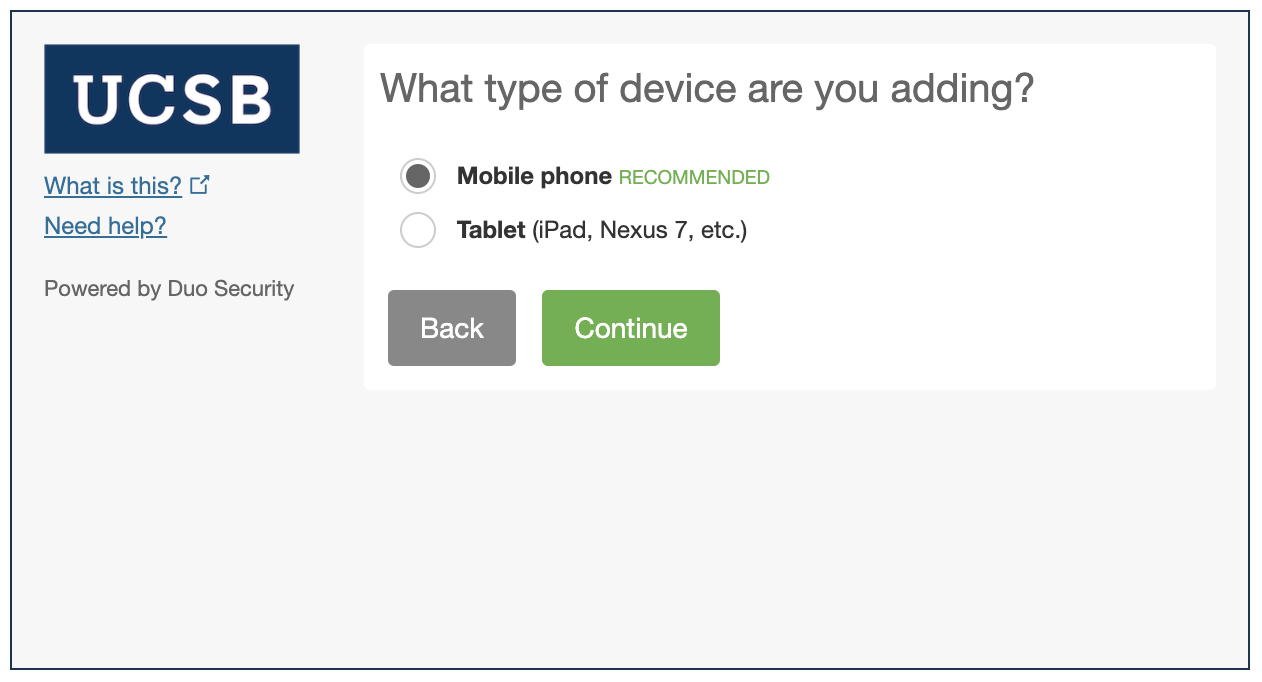
1.3) You are prompted to select the type of device you are adding. Select "Mobile Phone."
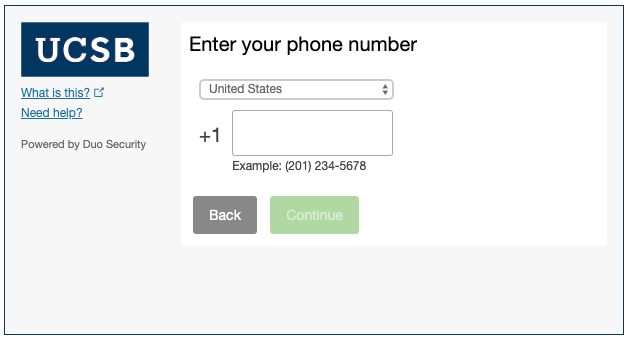
1.4) Enter your mobile phone number in the space provided. Ensure that the number entered is correct, then confirm by checking the box and clicking "Continue."
1.5) Enter the type of smartphone you are enrolling, then click "Continue."
STEP 2: Install the Duo Mobile App on Your Mobile Phone
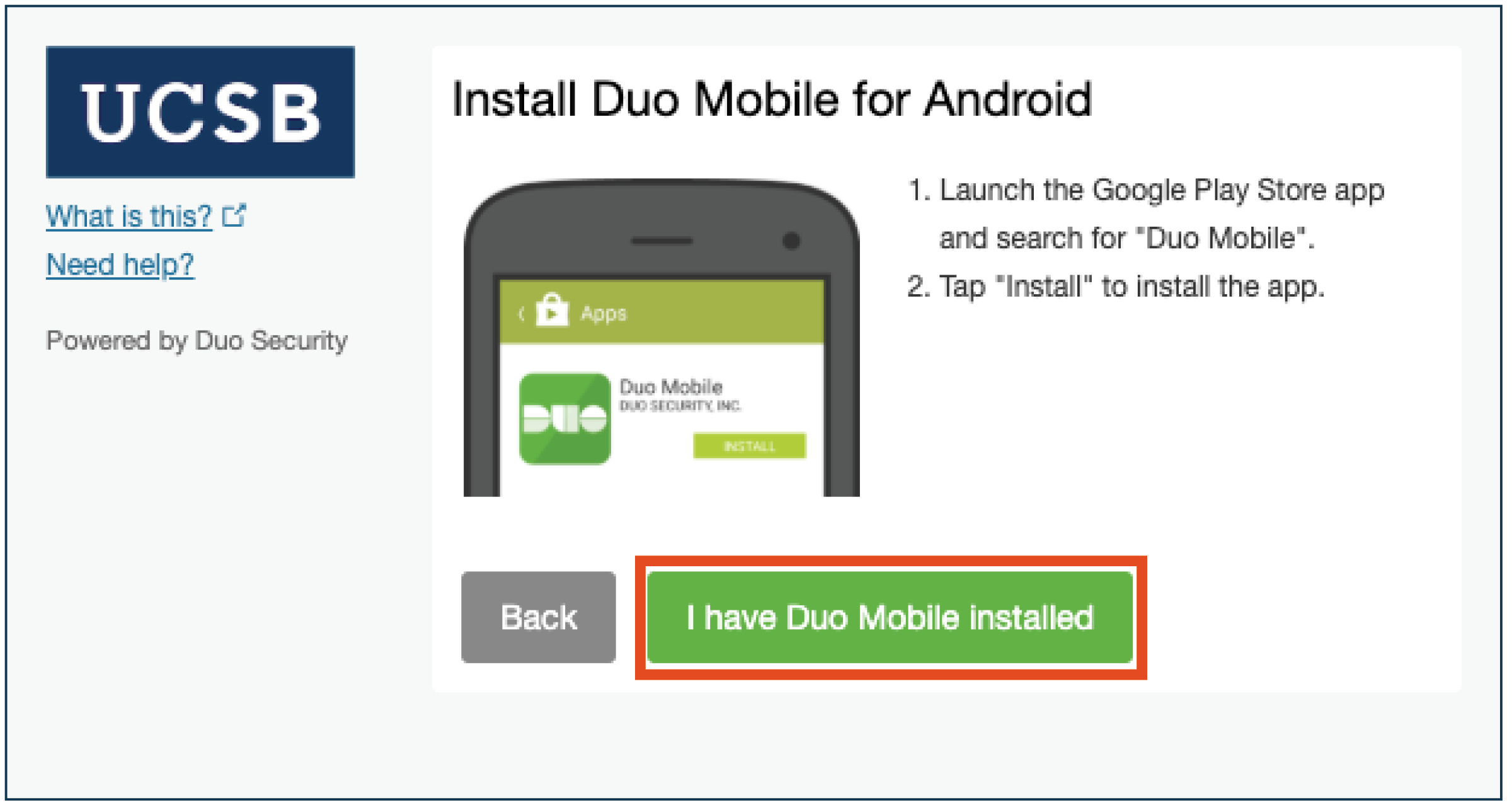
2.1) Search for Duo Mobile on your smartphone's App Store or Play Store.
2.2) Install the free app on your smartphone. (NOTE: You will need to allow Duo mobile to access your camera.)
STEP 3: Complete Enrollment Using Your Computer and Your Mobile Phone
3.1) After completing the installation of the app on the smartphone, on your computer, click "I Have Duo Mobile Installed."
3.2) From the Duo Mobile app, click the plus sign (+) in the upper right corner of the phone screen.
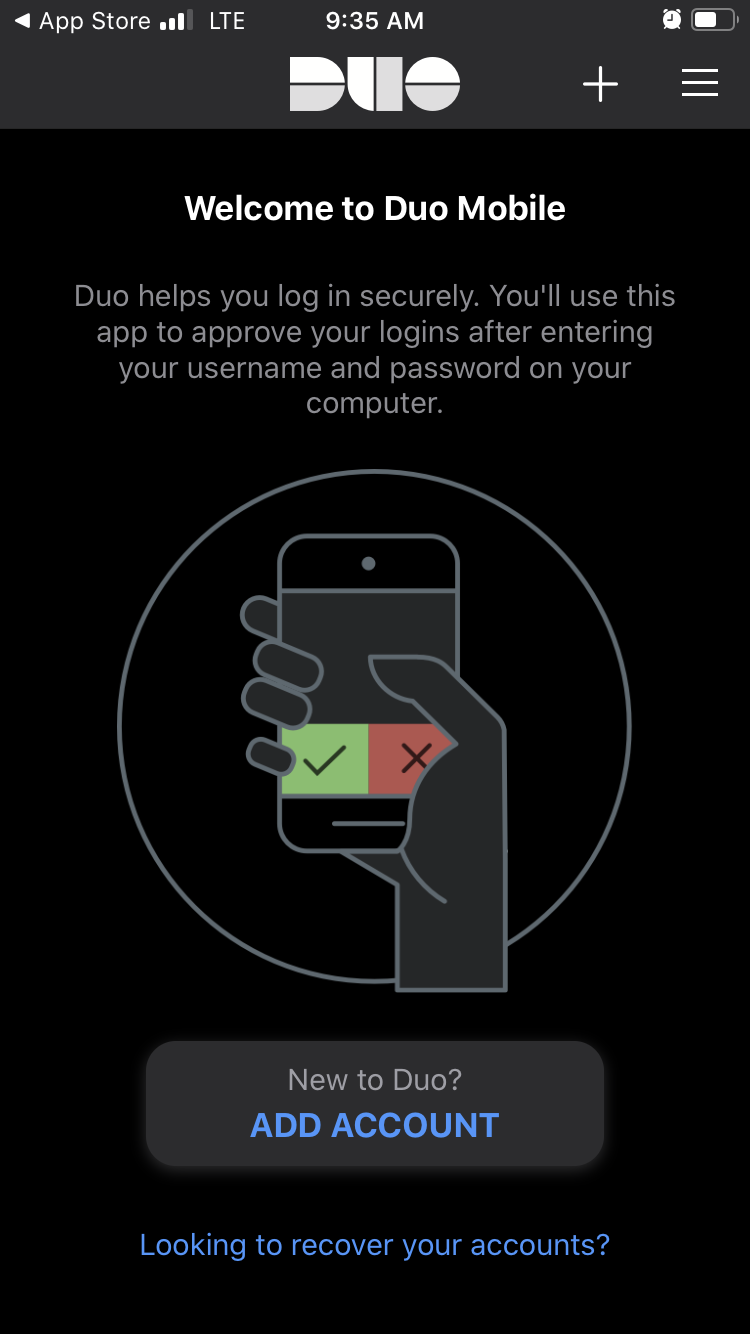
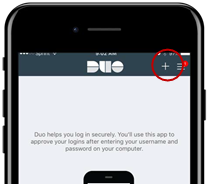
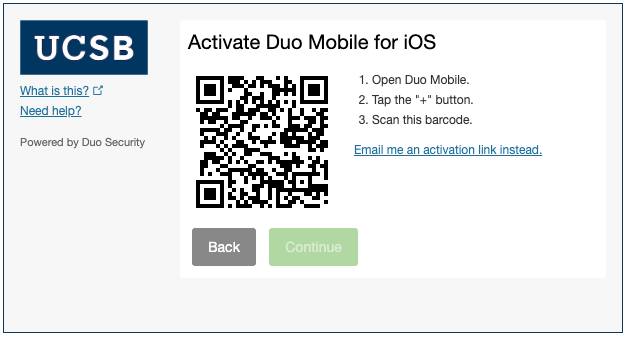
3.3) Scan with your phone the QR code that displays in the "Activate Duo Mobile" computer screen.
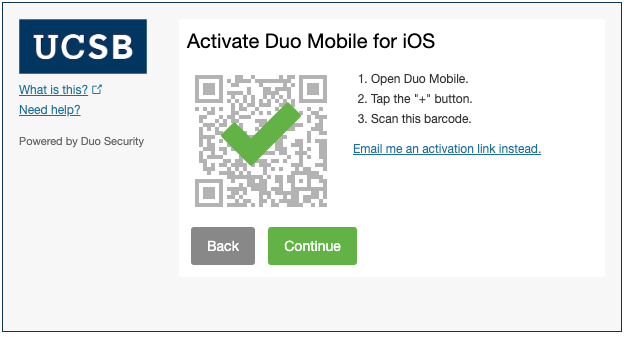
3.4) A green check mark displays on the computer screen. Click "Continue."
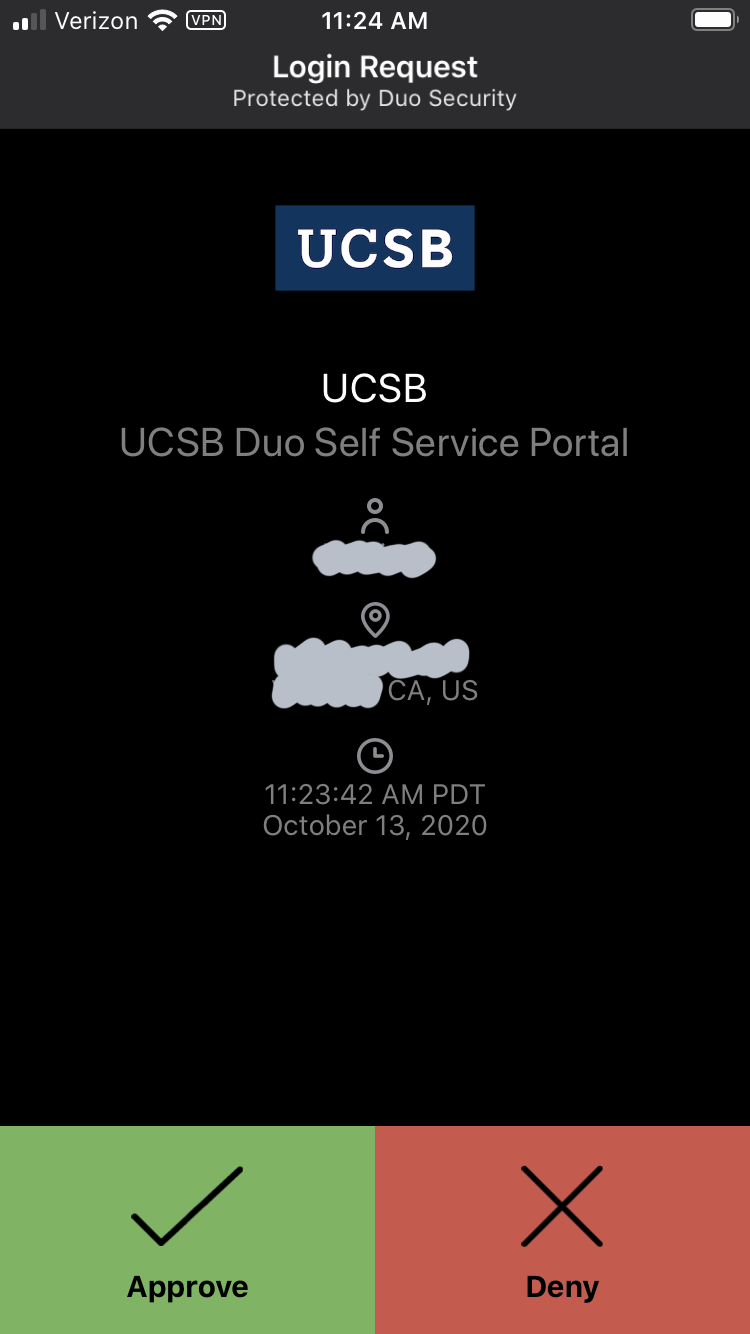
3.5) A "Login request" notification from Duo Mobile arrives on your phone. When you open the app, it will display "Approve" and "Deny" buttons. Select "Approve." If you accidentally click "Deny," you can choose the "It was a mistake" option.
STEP 4: Select Duo Authentication Method on the Computer
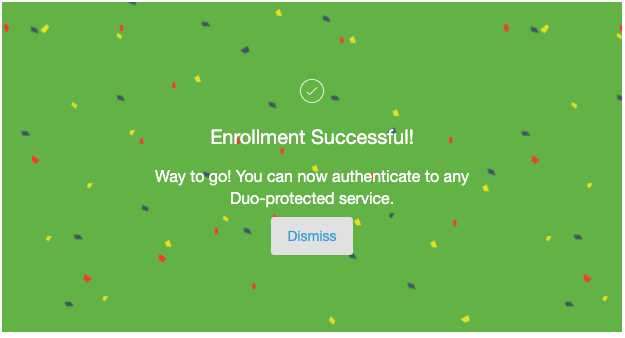
4.1) Verify that your phone number is correct, and select an authentication option for "When I Log In."
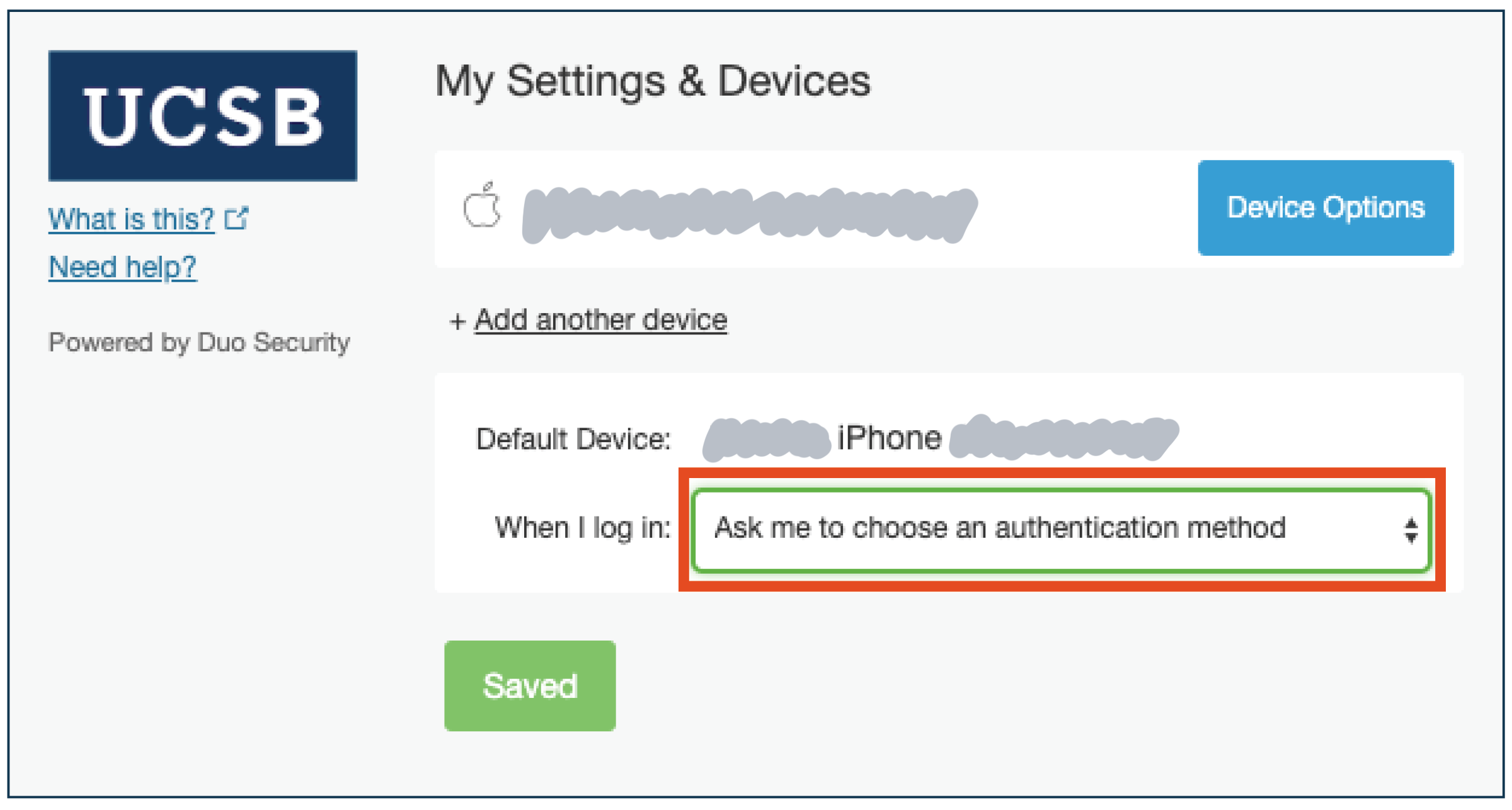
c) Click Save, then click "Finish Enrollment." The recommended setting is "Automatically send this device a Duo Push." You are now enrolled in Duo!
STEP 5: Testing the Push Notification
5.1) Open a web browser to instructions to MFA with Duo Self-Registration.
5.2) After logging into SSO, click the "Send me a push" button on the Self-Registration form displayed.
5.3) You will receive an alert on your phone that says "Login request: Duo Self Service Portal." Open the notification and press "Approve."
5.4) You will see the My Settings & Devices screen. This means your push notification works as configured.
For the latest reference see https://guide.duo.com/.
If you're ready to register a second device for MFA with Duo.